Friday, 23 January 2015

Useful Command Prompt Tricks For Easy Operation


              There are two ways to work in Windows Operating System i.e GUI(Graphical User Interface) and CUI(Command User Interface).In this post lets see the importance of Command Prompt and how to make it simpler to use.MS-DOS gives you complete control over what your computer does.


1. Command Prompt History
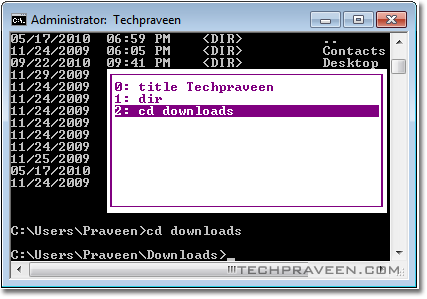


Many does not know that windows command prompt got history.Just press F7 to display the list of commands entered during the current session. Use the arrow keys to select and command from the list you want to run.


2. Full Screen Mode

    What to work full screen in Ms-Dos? Just hit ALT+ENTER key for full screen mode.Use the same shortcut to exit full screen. If you wish to close CMD Prompt type Exit and hit Enter.


3. Copy and Paste Text into CMD

You can’t simply do Copy and Paste operation in CMD with Ctrl+C and Ctrl+V shortcut keys. You can however copy text from other applications, right click on the command prompt windows under Edit click Paste.


undefined


Tuesday, 30 December 2014

How To Enable God Mode in Windows 7 & Vista


Hai Am Going to Show How To Enable God Mode in windows 7 & Windows Vista Effectively.. By enabling God mode you can access all your windows setting from one folder and it makes really easy to access and change windows settings . This work 32 as well as 64 bit operating system. So lets enable God mode on your computer.


Steps

  1. On your desktop  right Click and create a New Folder.
  2. Rename this folder to the code given below.

GodMode.{ED7BA470-8E54-465E-825C-99712043E01C}

  3. Done now double click on this folder and you will have access to all your windows operating system  settings


Video Tutorial


Tuesday, 9 September 2014

Pin your Recycle Bin to the taskbar


                  If you’d like easy access to your Recycle Bin so you don’t have to fish through the clutter of your desktop to find it, you can pin it to the taskbar. Problem is, in Windows 7, the Recycle Bin doesn’t act like a normal program icon does. You can’t drag it directly onto the taskbar for pinning.
                Start by right-clicking on an empty area of the desktop, and select New > Shortcut. In the field that says, Type the location of the item, enter this text, then click Next:

%SystemRoot%\explorer.exe shell:RecycleBinFolder

43a-RecycleBin


                  You will be prompted to enter a name for the shortcut. Enter Recycle Bin(or really, anything you wish), then click Finish. This will place a shortcut onto your desktop that looks like a folder.
Next, you will need to add the actual Recycle Bin visual icon onto the shortcut. Right-click on the icon and select Properties. Then click theChange Icon button, select the Recycle Bin icon, and click OK. It looks like this:

43c-RecycleBin

                     Now, you can simply drag the icon onto your taskbar, and you are good to go. You can delete the shortcut on your desktop when you are done. And if you decide later that you want to remove the Bin from your taskbar, simply right-click on it and choose Unpin this program from taskbar.


Monday, 7 July 2014

How To Change Processor Name Permanently


Change Processor Name Permanently


Problem: To, make the name change permanent, it was required that the user updates the Processor Name String registry key each time when Windows starts. 

Solution: It is very easy to change your processor name permanently by creating a registry key and placing a shortcut to it in the windows start up folder. To do so, just follow the steps given below:-

Change Processor Name Permanently

Steps :-

1.  Open Notepad.
2.  Copy and paste the exact code given below:-


Windows Registry Editor Version 5.00

[HKEY_LOCAL_MACHINE\HARDWARE\DESCRIPTION\System\CentralProcessor\0]
"ProcessorNameString"="My Processor name 50000MHz"


            To change the processor name, edit the part of the code given in blue. Also understand that \0 in the above code should only be present if Windows store your processor name at that location. Please open Registry Editor and navigate to the above mentioned keys to check whether or not to include the \0.

3.  Click on File Menu, click on Save As and select "All Types" in Save as Type option. Save the         file as ProcessorNameChange.reg or *.reg.
4.  Create a new shortcut on your desktop. Enter regedit / S "Location of the .reg file" as the               location of the item. For example, enter regedit /S "C:\Processor Name.reg" if your registry            file is located in the root of C:\ drive.

Processor Name

5.   Copy the created Shortcut file.
6.  Navigate to C:\Documents and Settings\All Users\Start Menu\Programs\Startup (in Windows XP) or to C:\Users\ User-Name\AppData\Roaming\Microsoft\Windows\Start Menu\Programs\Startup (in Windows 8, Windows 7 and Windows Vista. Also remember that App Data is a hidden folder.)  if C: is your System drive.
7.  Paste the copied file.


       This registry file would now execute each time when Windows starts and the Processor Name String would be modified each time. So, even upon restarting your computer, you will see that the changed processor name is permanent.

Friday, 4 July 2014

Thursday, 3 July 2014

DIFFERENCE BETWEEN TFT AND LCD.


                This is a common question when have been asked about several times by many people. Every body wants to know that what is the difference between a LCD and TFT. 
So i figured out, i should answer this question for anyone who has doubts.

LCD stands for Liquid Crystal Display... and  TFT stands for Thin Film Transistor.

TFT is not really different from LCD.
 It comes from the family of LCD technology.

 We can say that it is a modern version of the LCD Technology. 
A TFT provide a well improved image quality. 

There are two typs of display quality:
 1st one is Matty and 2nd is Grossy. 
Matty display is called LCD and Grossy display is called as TFT.
 LCD and TFT consumes less power energy as compared to CRT (Cathode ray tube).

Now a days TFT has been used for mobile phone devices, projectors, nevigation systems as well as TVs and computer monitors.

5 Tips to Improve Your Blog


5 Tips to Improve Your Blog


Tips Better Blog

            Just about anyone can blog. But not everyone can blog well. There are several factors that go into setting your blog apart from the millions that are out there competing for attention. Here are 5 tips that you can use to make sure that blog stands ahead of the crowd:-

Tips For Better Blog


1. Self-host

                Self-hosting your own website is one of the easiest ways to give your blog more credibility.  It also shows that you take your blog more seriously than someone that is utilizing a free blog site. And these days, it’s relatively cheap to host your own domain name. HostGator, Dreamhost, and Bluehost are three hosting companies that charge you about $10 a month (or less!) to self-host your website. You can even add a custom domain in most free blogging platforms if you don't want to move away.

2. Promote via social media sites

Social media websites for blog promotion


                  Facebook and Twitter are two great resources when it comes to promoting your blog. You can create a fan page on Facebook where you can link to your blog site and keep your readers engaged as well as grow your readership. Facebook is such a huge social media resource with the ability to reach millions of potential readers… why wouldn’t you want to take advantage of that? The same goes for Twitter, where you can post links to your current (and past) blog posts and also find different chat groups to participate in. Participating in chat groups is a great way to find people with the same interests as you. You don't have to be limited to just Facebook and Twitter. There are many websites you can be active on.


3. Headlines

               You should write strong headlines that easily define what you are going to be talking about in your post. This not only peaks a readers interest, but also allows your blog to be more searchable. Strong doesn't necessarily mean something with flair though, it means something direct that immediately identifies what readers can expect to find in your post, and that will pop up in a search engine when someone types in a particular topic.

4. Write well

            Readers can tell the difference between a post that has obvious time and effort put into it and one that is just slapped up to get something out there. Put time into what you’re posting about. People appreciate posts which are original and well thought out. 

5. Layout

            Your blog layout should be clean and easy to navigate. The design should be visually appealing without being overwhelming. No one wants to have to guess on where to find information. You should have a search bar where people can easily search topics and archives that readers can look through to see what else you’ve written. You should also include a contact page so that it’s easy for others to get in touch with you if they have questions or comments about something you’ve written, or want to get in touch with you about a potential business deal. 

             By putting these tactics into play you should be able to market your blog in a more effective way and increase your readership. It may take a little time on the forefront, but you will reap the benefits of these efforts in the end.